


Policy | Additional Interests | Add People and Parties to a Risk


Policy | Additional Interests | Add People and Parties to a Risk
Modular Solutions | Partner Success | Underwriters and brokers
Purpose
Explain the layout used for the people and parties attached to a quote and to a risk, such as additional insureds on a policy or operators on an automobile.
Overview
The streamlined layout already used elsewhere now applies to the people and parties attached to a risk. They are added one after another from the step you are already on, rather than from a separate screen, and each one is listed in the left hand menu so you can move between them. The information captured has not changed. Only the layout has.
Expected Behaviour
Insureds on the quote
- The Add Named Insured(s) step asks whether the insured is an individual or a business, then offers a search for an existing customer.
- Selecting an existing customer fills the name and date of birth on the same step and offers Disconnect, which releases the link without leaving the step.
- Save and Add Another Insured saves the insured you are on and opens a dialog headed "Please select the type of customer you want to add:", offering Individual Customer and Business Customer with an Add control under each.
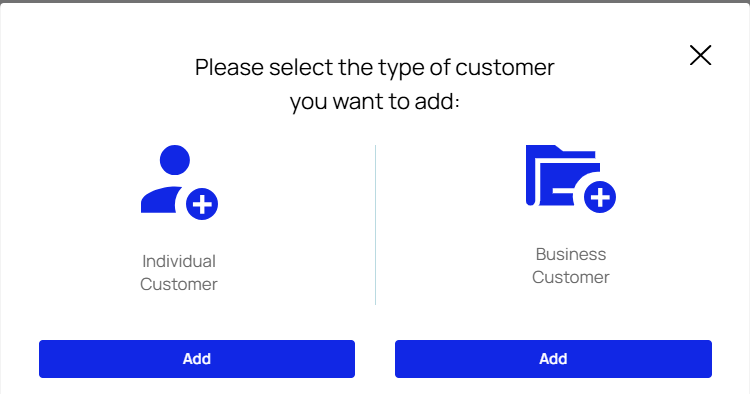
The dialog that opens when another insured is added
- Each insured is listed under an Insured(s) heading in the left hand menu, so you can move between them without losing your place.
- Each additional insured opens in its own view on the step, carrying its own Remove control alongside Save and Add Another Insured.
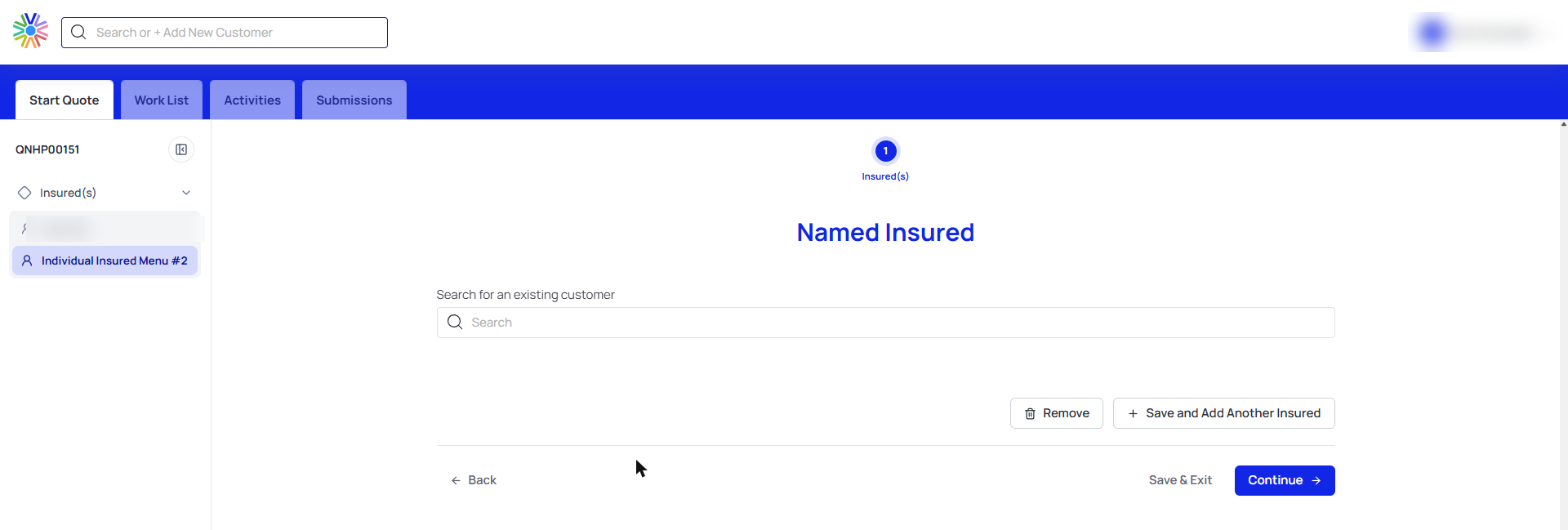
A second insured, listed in the menu under Insured(s) and open in its own view
Operators on a risk group
- On an automobile, the operators on the risk group are listed as cards showing the detail already captured, each with an edit and a delete control.
- Add Another opens the entry form in place on the same step, under a breadcrumb reading Drivers then Add Operator, with the step indicator and the left hand menu still in view.
- The fields are unchanged. The platform labels them License Province, License Number, License Class, License Effective Date and License Expiry Date.
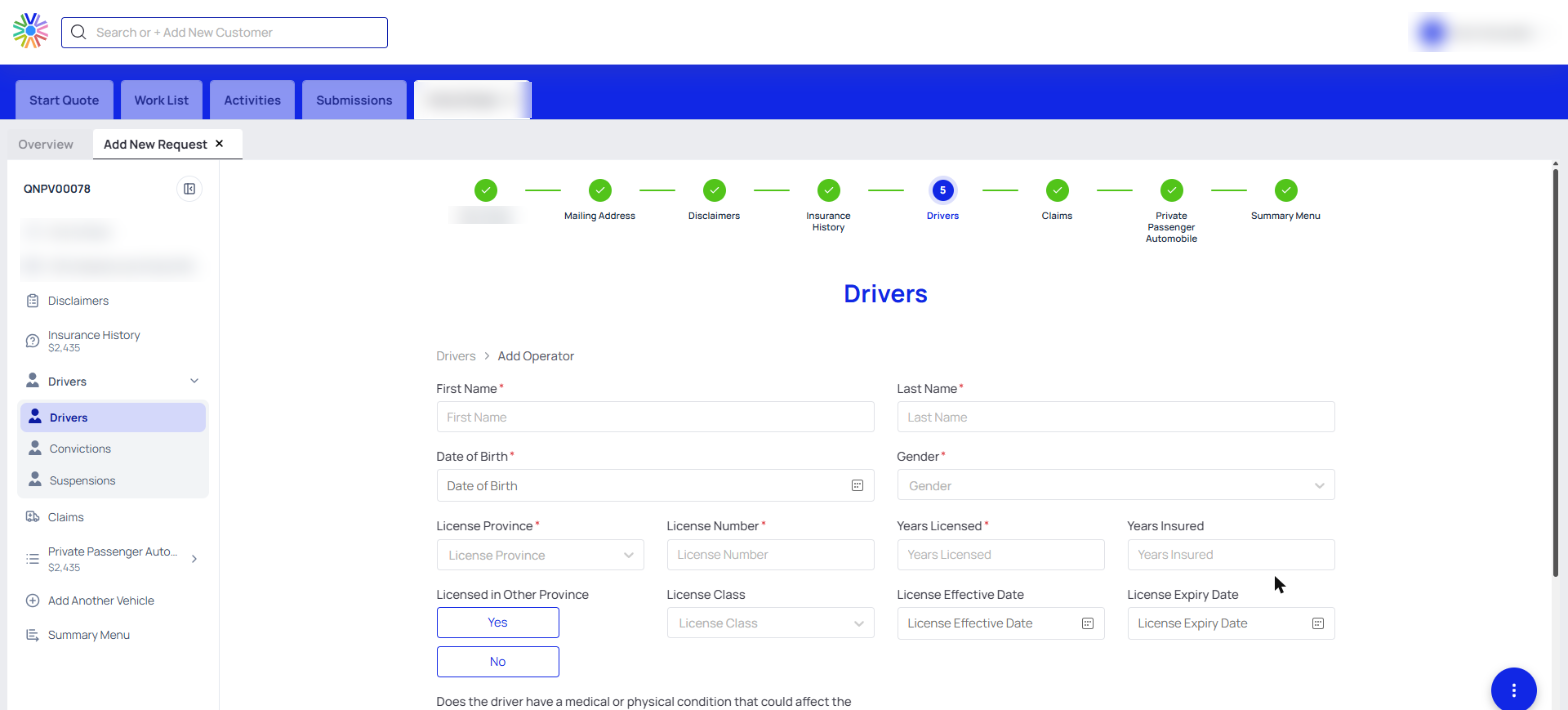
The operator entry form, opened in place on the step
Steps
- Open the step for the people or parties you are adding, such as Add Named Insured(s) or the operators on a risk group.
- Complete the entry you are on, searching for an existing customer where there is one.
- Select Save and Add Another Insured, or Add Another, to add the next one.
- Where you are asked, choose whether the party is an individual or a business.
- Move between the entries from the left hand menu, and use Remove to take one off.
Notes and Edge Cases
- Saving the first insured creates the quote, so a quote number appears in the left hand menu from that point on.
- The information captured does not change. Only the layout does, so an entry made before this change reads the same.
Status
Available.
Version / Sprint Reference
Sprint 26M

