


Product | Work in Progress | Choose the Date That Triggers Auto Close


Product | Work in Progress | Choose the Date That Triggers Auto Close
Modular Solutions | Partner Success | Product administrators and underwriting managers
Purpose
Explain the option to choose which date is used when inactive work in progress is closed automatically.
Overview
Auto close for inactive work in progress can be set to work from one of three dates rather than a single fixed one: the date the version was last updated, the effective date, or the date the work in progress was created. Closing a work in progress frees the capacity it was holding, whether it is closed automatically or by hand, unless it has been issued.
Before You Begin
- Auto close has to be turned on for the product before a date can be chosen. The Sprint 26L article Policy | Work in Progress | Auto-Close Inactive Items covers turning it on.
Expected Behaviour
- The setting sits on a product configuration, in the Product module under Product Configurations, in a section headed Auto Close Work In Progress.
- An existing configuration cannot be changed. A new configuration is added instead, and it takes effect from the Implemented On date set on it.
- Turning the setting on reveals two fields. Close after days of inactivity takes the number of days. Count days of inactivity from takes the date to work from.
- The three dates offered are Version Updated On Date, Effective Date and Work In Progress Created Date.
- A work in progress can hold more than one version, such as two quoted versions and an advanced one. The version updated date and the effective date are each taken as the latest across all the versions it holds. The created date is the date the work in progress itself was created.
- An item closes once the date chosen is older than the number of days set against it.
- The job runs nightly, shortly after midnight.
- An existing setup keeps working as it did until the date is changed.
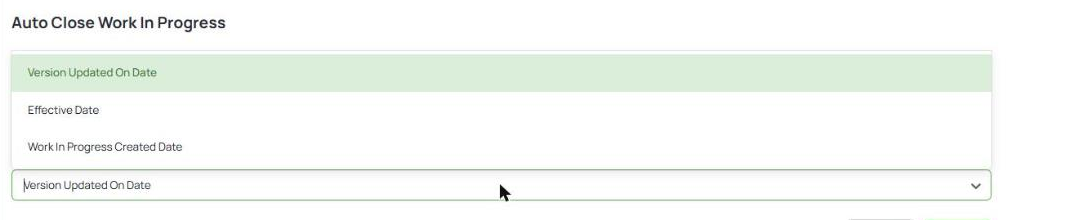
The Auto Close Work In Progress section on a new product configuration, with the three dates open
Steps
- Open the Product module and go to Product Configurations.
- Find the product, open the actions menu at the end of its row and select Add.
- Choose whether to start from new or to copy from an existing product configuration, then continue.
- Set Implemented On to the date you want the change to take effect from.
- Turn on Auto Close Work In Progress.
- Enter Close after days of inactivity, and choose the date in Count days of inactivity from.
- Select Submit.
Notes and Edge Cases
- Working from the effective date can close a large number of items soon after it is set, where quotes are held with dates already in the past. Review what is open before changing it.
- Speak to your Partner Success Manager through support if you want help choosing the setting.
Status
Available.
Version / Sprint Reference
Sprint 26M

