


Stakeholder | Broker Transfer | Move a Book of Business in Bulk


Stakeholder | Broker Transfer | Move a Book of Business in Bulk
Modular Solutions | Partner Success | Administrators and operations teams
Purpose
Explain how to move the policies and quotes held under one brokerage, broker code and broker office to another, in one upload.
Overview
Where a brokerage is bought or merged, its policies and quotes have to move to a new brokerage, broker code and broker office. This can now be done from the brokerage itself by uploading an Excel sheet, rather than by raising a support request. The upload runs in three stages. The sheet is checked, a preview shows what would move and what would be skipped, and nothing changes on any policy or quote until the book roll is confirmed.
Before You Begin
- Your role needs the Stakeholder Batch Broker Transfers permission, which reads "Can bookroll policies between broker codes and offices from an uploaded Excel sheet". It sits under Stakeholders in Admin, Permissions, on the permission group.
- Have the from and to broker codes and broker office names to hand. The office named on each side has to be linked to the broker code named on that side, or the sheet is rejected.
Expected Behaviour
- The Bookroll button sits on the brokerage, on the Broker Offices tab, beside Add New. It does not appear on the Broker Codes tab.
- Bookroll opens a closable tab named Broker Transfer Batch Upload. The upload panel takes one file at a time and reads "Accepted file types are: .xlsx".
- The panel lists the columns the sheet has to carry: From Brokerage Operating Name, From Broker Code, From Broker Office Operating Name, To Brokerage Operating Name, To Broker Code, To Broker Office Operating Name and Effective Date.
- Preview stays unavailable until a file is attached. The attached file can be taken off again with the cross beside its name.

The Broker Transfer Batch Upload panel, listing the seven columns the sheet has to carry
Where the sheet does not check out
- Selecting Preview on a sheet with problems returns a list headed with the file name and a count, reading "Nothing has been changed. Fix the sheet and upload it again."
- The list gives the row, the column and the problem, and all three can be sorted. A problem names what is wrong on that row, such as a broker code that does not exist under the brokerage given, or a broker office that is not linked to the broker code given.
- Nothing is written at this stage. The button becomes Upload another file, which returns you to the upload panel for a corrected sheet.

The problems list returned when the sheet does not check out, with nothing changed
Where the sheet checks out
- The preview is headed Review before you bookroll and carries a counts line reading how many rows were read, how many policies and quotes will move and how many will be skipped, followed by "Nothing changes until you select Bookroll."
- The list gives the row, the policy or quote, its current broker code, its current broker office and the outcome. Each line carries Will move or a skip reason.
- A line already sitting at the destination for that effective date is skipped, and reads "Skip, already there, same date".
- The confirm button carries the count, reading Bookroll followed by the number of policies and quotes. Where nothing will move the count reads zero and the button cannot be selected.
- Back returns you to the upload panel and clears the attached file.
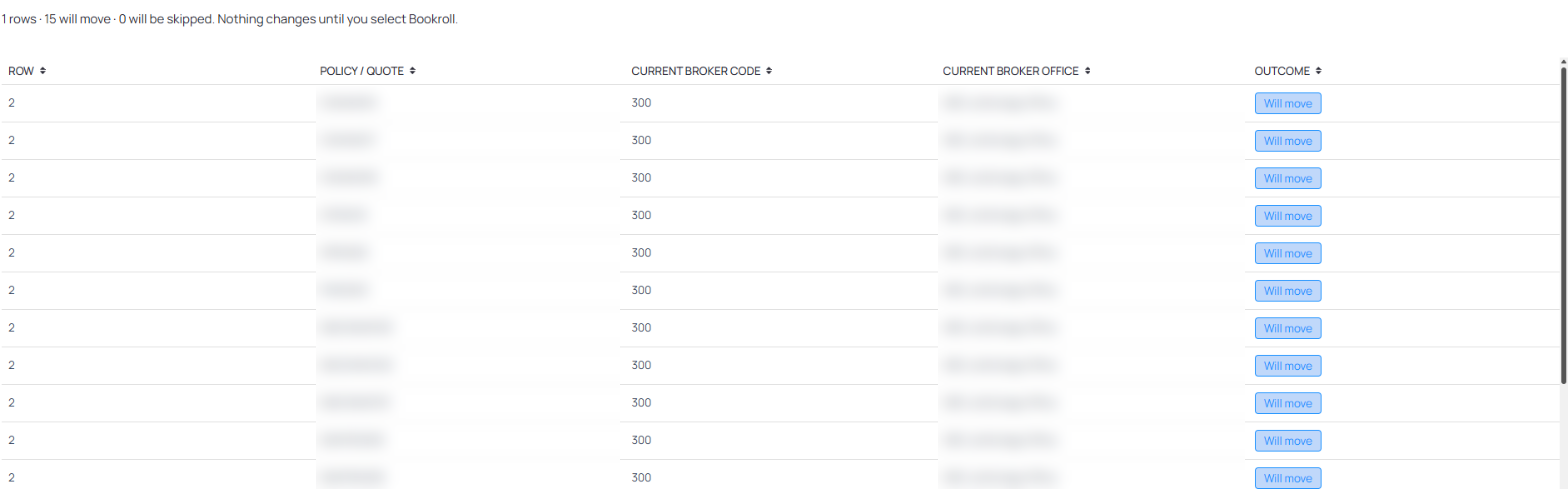
The preview, with the counts line and the outcome against each policy and quote
After the book roll
- The results screen is headed Bookroll finished and carries a counts line reading how many rows succeeded, how many were skipped, how many failed and how many policies and quotes moved.
- The summary lists one line per row of the sheet, under From brokerage, From code, From office, To brokerage, To code, To office, Effective and Result. The result carries the outcome and the number moved.
- Below it, Policies and quotes lists every policy and quote the roll touched, with the same from and to columns plus Policy / quote, Type, Outcome and Reason. Type reads Policy or Quote, and Reason carries the explanation on anything skipped or failed.
- One Download Excel control sits at the foot of the screen and covers the whole result. There is no separate download for the summary and the detail.
- Done closes the Broker Transfer Batch Upload tab and returns you to the brokerage.

The results summary, with the effective date and the outcome on the row
Steps
- Prepare the Excel sheet with one row per book roll, under the seven column headings the upload panel lists.
- Open any brokerage, go to the Broker Offices tab and select Bookroll.
- Attach the sheet and select Preview.
- Where problems are listed, correct the sheet, select Upload another file and attach the corrected sheet.
- Read the counts line and check the outcome against each policy and quote.
- Select the Bookroll button to commit the move.
- Select Download Excel to keep a record of what moved, what was skipped and why.
- Select Done to close the screen.
Notes and Edge Cases
- The check runs against the whole sheet before anything is written, so a single bad row stops the upload. Nothing is part applied.
- A book roll that has already run for the same combination and the same effective date is skipped rather than repeated, so re-running a sheet does not double move a book.
- The broker office on each side has to be linked to the broker code on that side. A valid office and a valid code that do not belong together are rejected.
- This is a first version. Depending on the reason shown against a failed line, some cases still need a support request to resolve.
Status
Available. Your role needs the Stakeholder Batch Broker Transfers permission. Submit a support request if you do not see the Bookroll button on a brokerage.
Version / Sprint Reference
Sprint 26M

