


Support | HappyFox Portal | Training Guide


Support | HappyFox Portal | Training Guide
Modular Solutions | Support | Client Resource
Purpose
To walk you through logging in to the HappyFox Support Centre, navigating the dashboard, submitting a ticket, and raising a change request.
Overview
The HappyFox Support Centre is where you raise and track support tickets with Modular Solutions. This guide covers the four things you will do most often: signing in, finding your tickets, submitting a new ticket, and submitting a change request.
Logging In
- Go to the HappyFox Support Centre home page.
- Enter the email address you registered with.
- Enter the password you created when you clicked the activation link in your welcome email.
- If you have forgotten your password, click Forgot Password. An email will be sent to you with instructions to reset it.
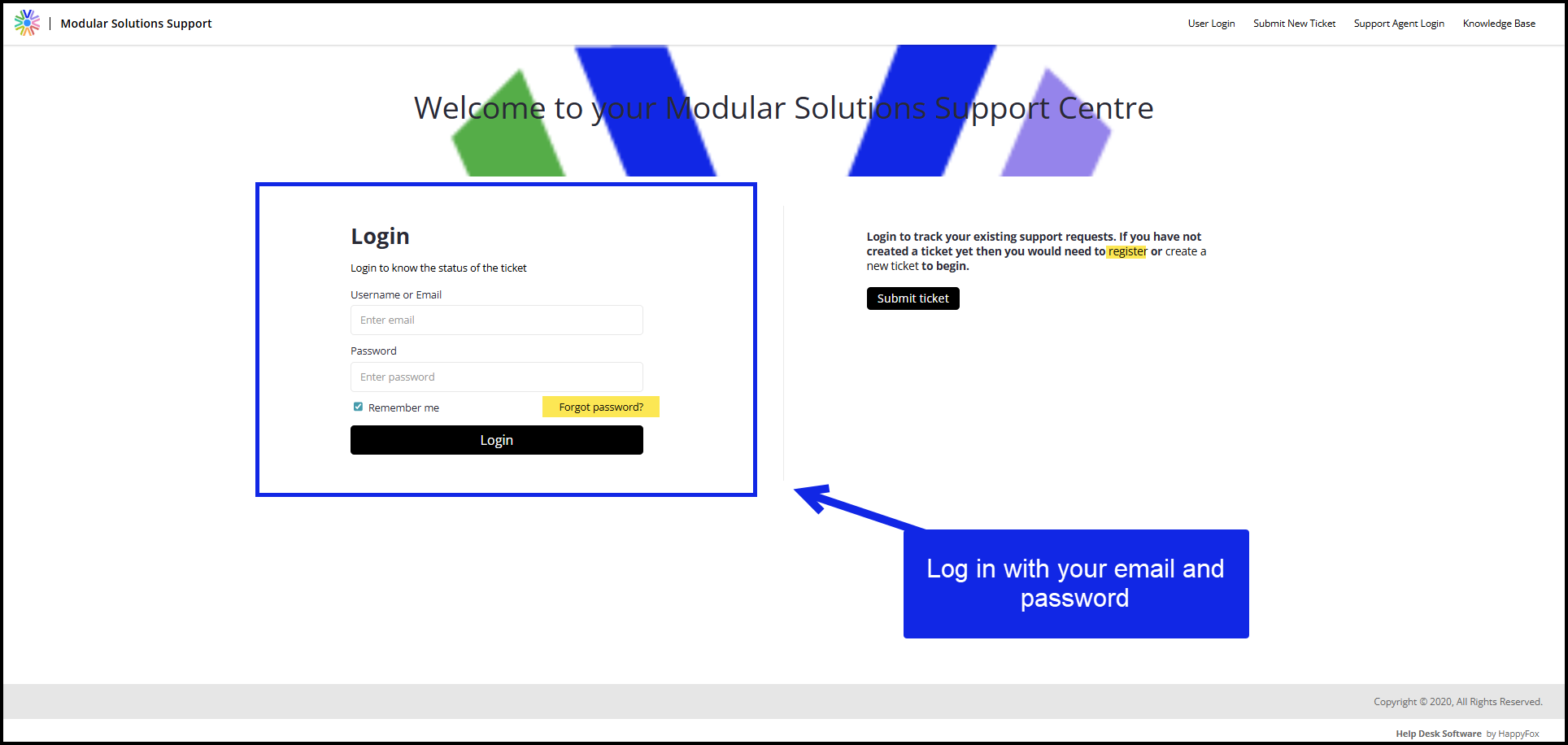
The HappyFox Support Centre home page.
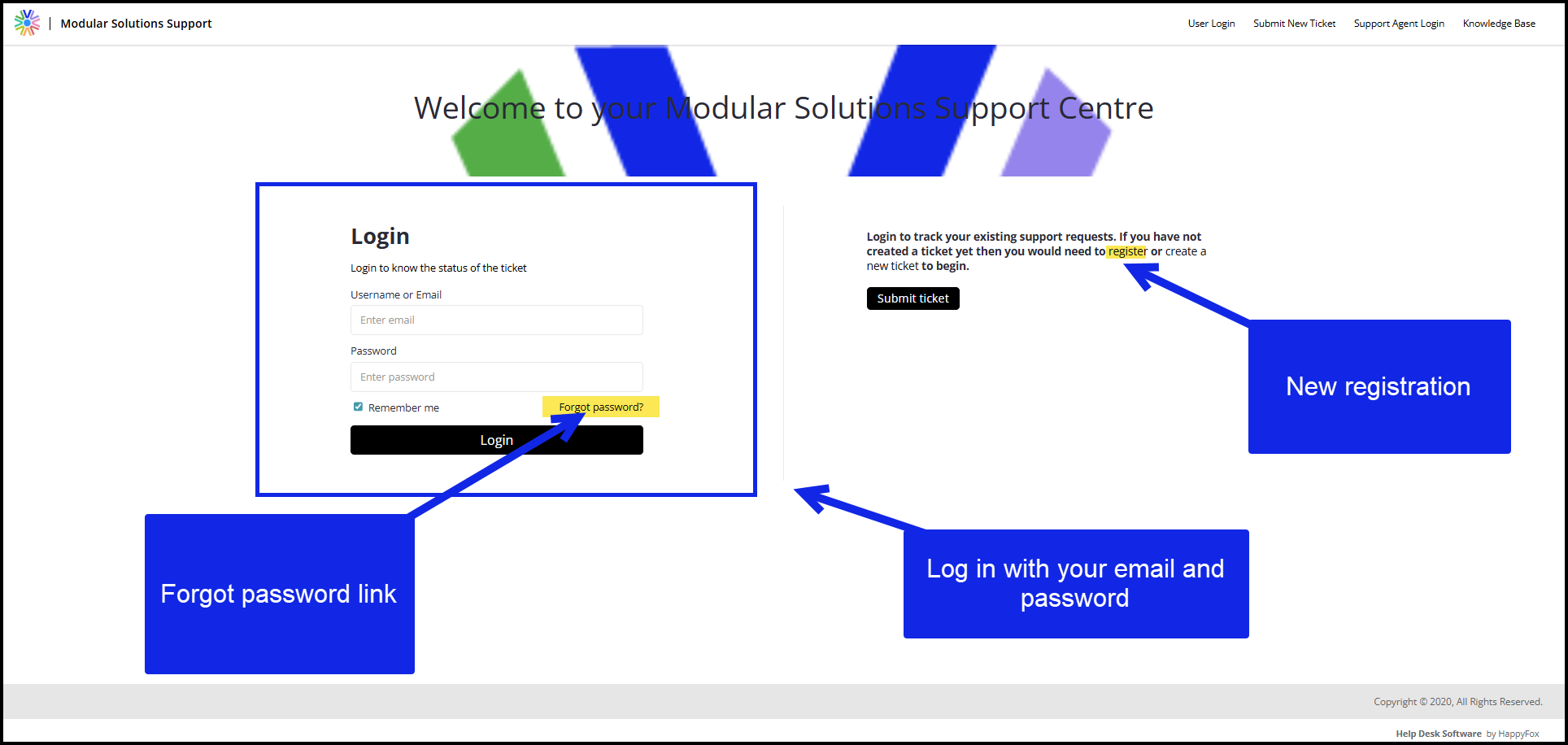
The sign-in fields.
Dashboard Overview
Once logged in, you will land on the dashboard. Here you can see your tickets, including open, pending, and closed ones.
- Click on any ticket to view its details.
- Use the Reply button within a ticket to respond to Support or provide updates.
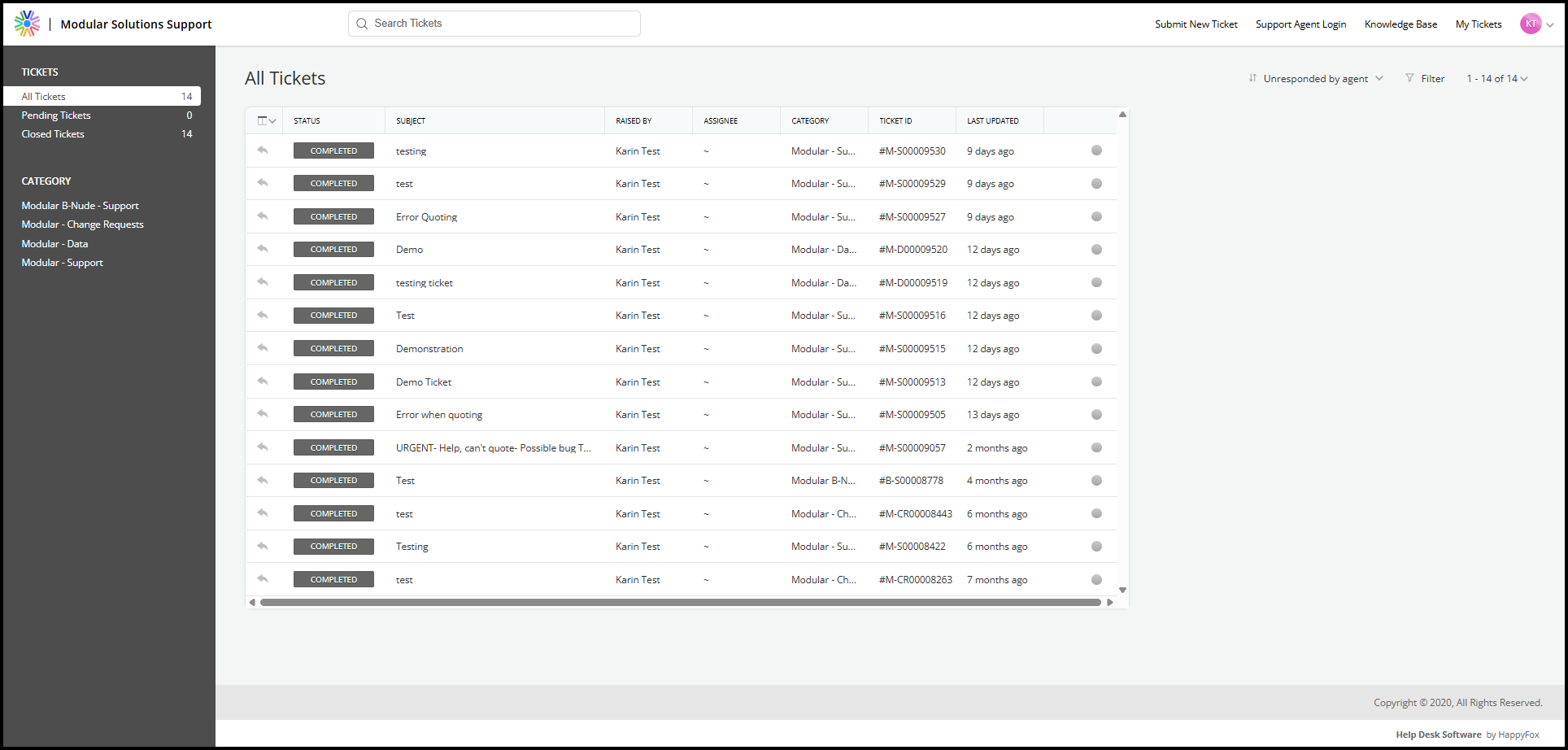
The dashboard, listing your tickets by status.
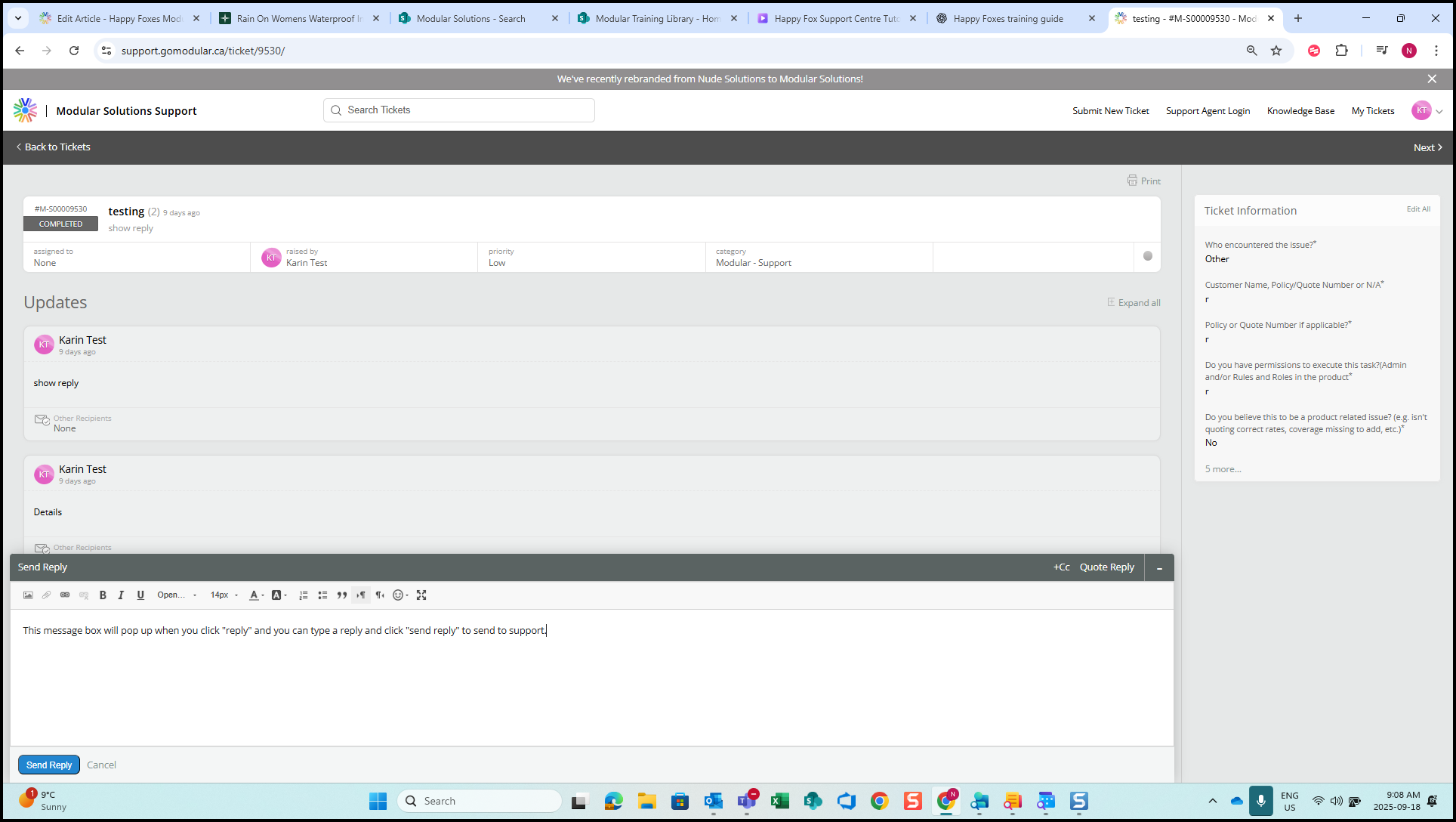
An open ticket, with the Reply option.
Submitting a New Ticket
To submit a new ticket:
- Click Submit a Ticket from the dashboard.
- Under Ticket Details, select the appropriate Category from the dropdown.
The categories available are:
- Data: reporting or financials.
- Maintenance: system adjustments needed.
- Modular Support: most common; general support needs.
- Modular Training: request training assistance.
- Change Request: request for changes (see the next section).
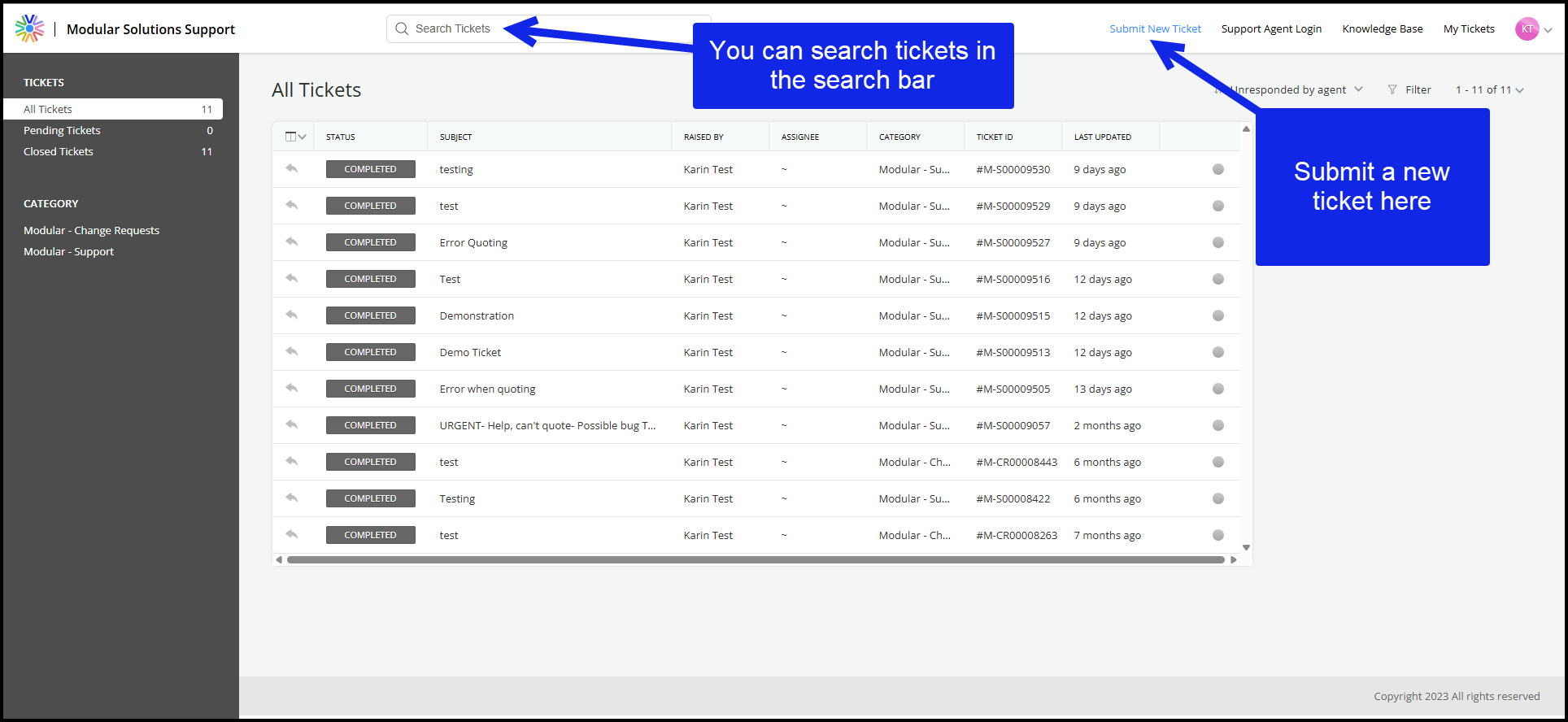
The Submit a Ticket option on the dashboard.
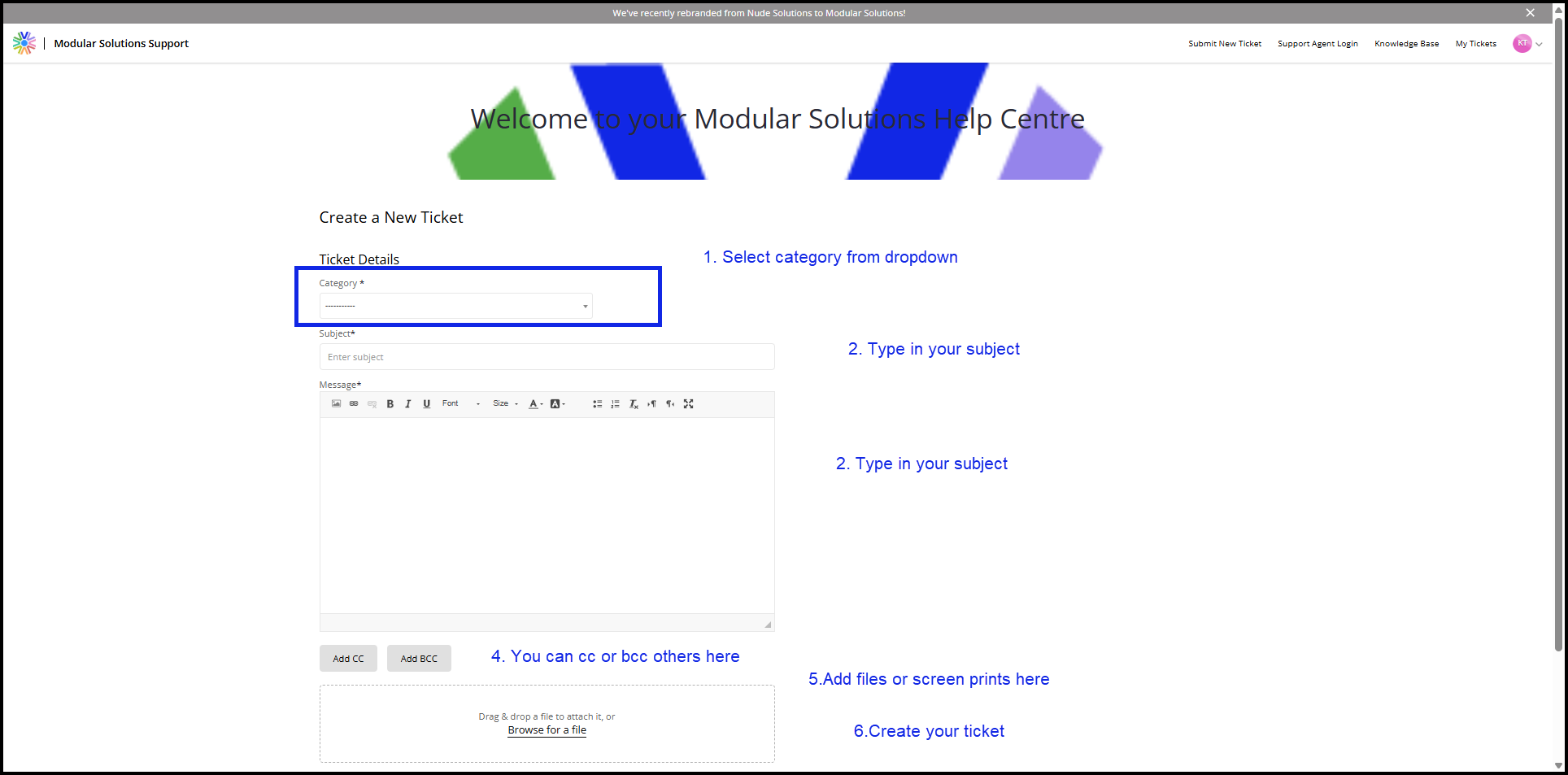
Ticket Details, with the Category dropdown.
Submitting a Change Request Ticket
Change requests have a more detailed process.
- Select Change Request from the Category dropdown.
- Complete all required fields, marked with an asterisk.
- Enter a Subject for your request.
- In the Message field, describe your change request in detail.
- Add attachments if you have supporting files. This step is optional.
- Click Create Ticket to submit.
The three required fields work as follows:
| Priority | Select based on the provided definitions. |
| Impact | Choose the option that best reflects the number of users affected, for example 1-3, 4-6, or 7-8. |
| Urgency | Select how quickly the request is needed. |
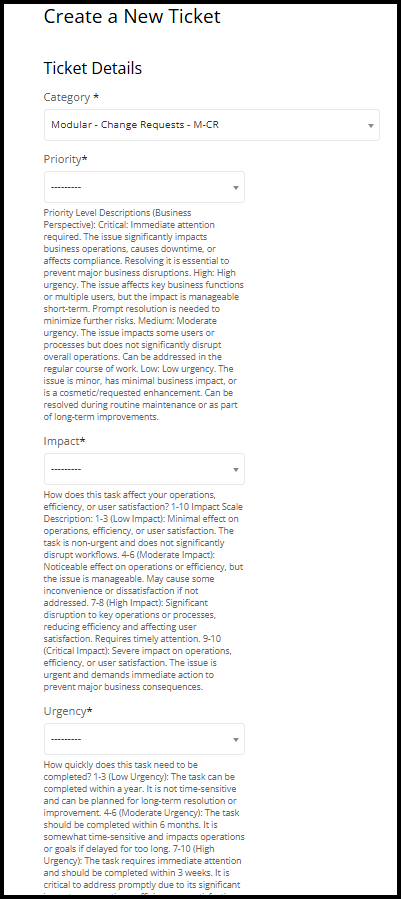
The change request form.
Ticket Tracking and Responses
- After submission, your ticket will appear in your dashboard.
- Support may respond with questions or updates. You can reply directly within the ticket thread.
- When resolved, the ticket will be marked as Closed.
That is it. You are now set up to log in, submit tickets, and create change requests within the HappyFox Support Centre.
Status
| Article Status | Published |
| Audience | Partners and Clients |
| Owner | Partner Success, Modular Solutions |
| Last Reviewed | 28 September 2026 |
Version / Sprint Reference
| Module | Support |
| Review Frequency | Quarterly, or when the Support Centre changes |

